Documentation menu
Sprint insights
Sprint insights reads your Jira and answers three questions: is the work flowing, do sprints deliver what they promised, and what were the tickets spent on, new features or everything else?
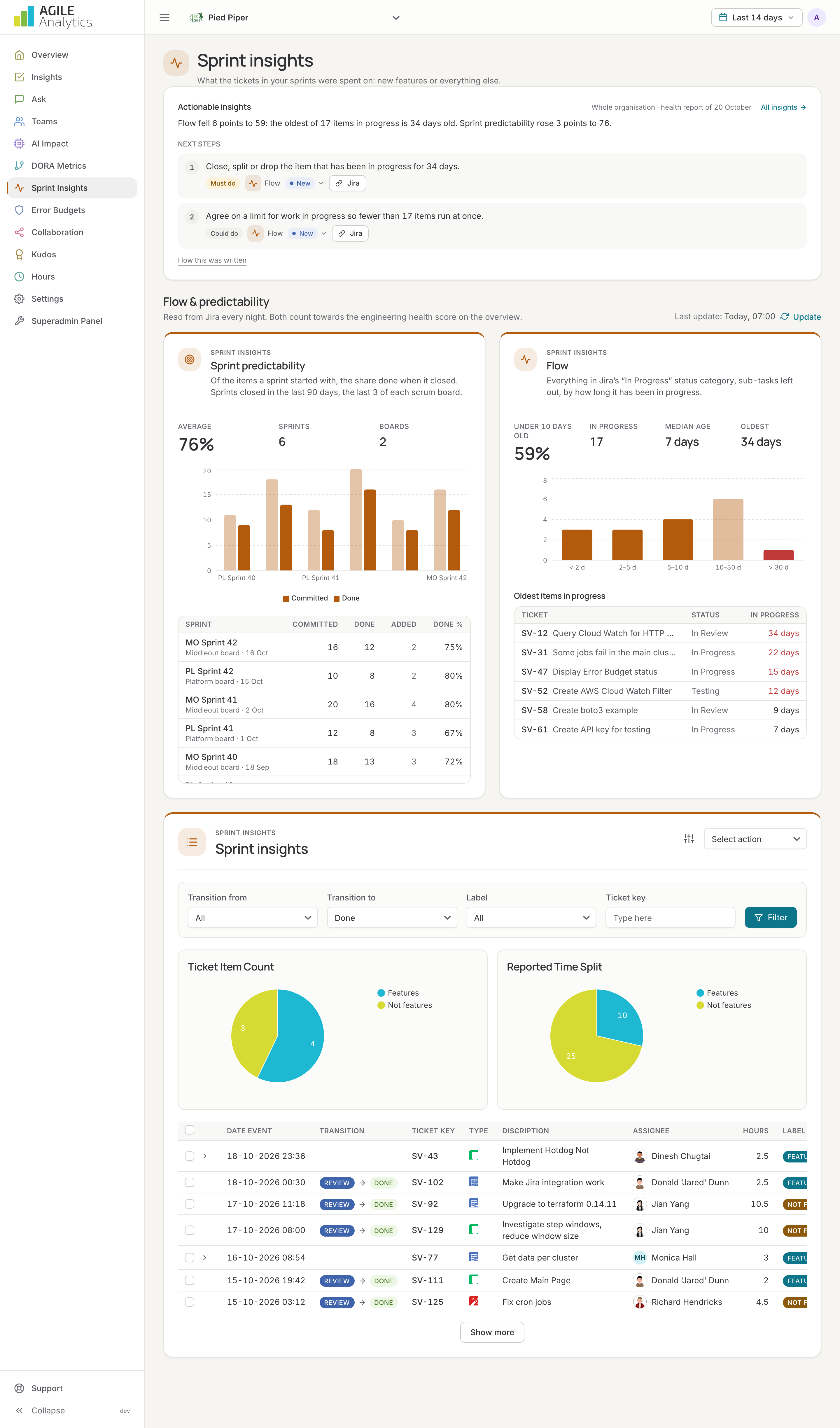
Setting up
Connect Jira under Settings → Sprint insights: see Connect Jira. Agile Analytics receives every ticket change through a webhook and reads boards and sprints every night. Users whose Jira profile is linked (Settings → Users) get their work counted in flow and in inferred hours.
Flow
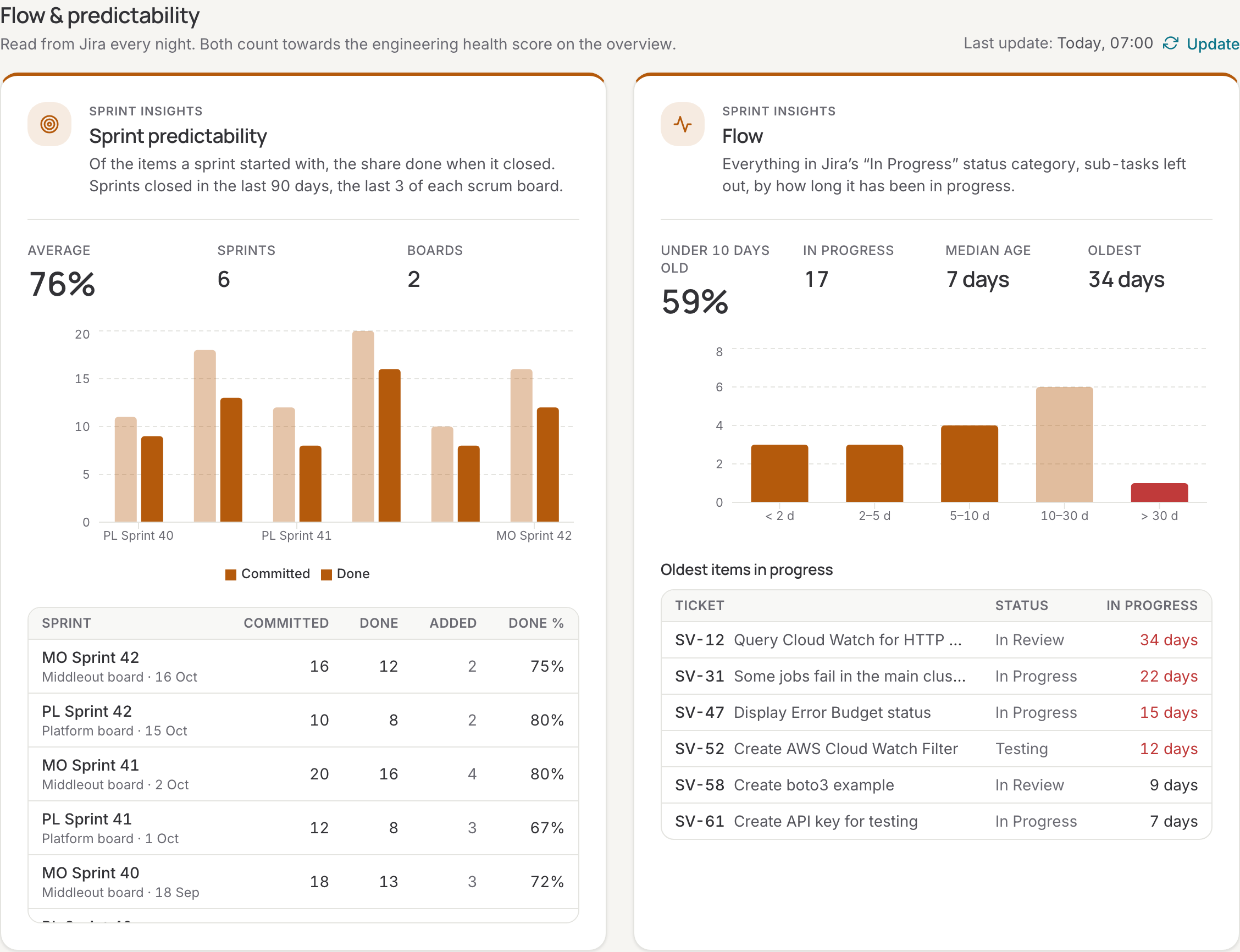
Everything in Jira's In Progress status category, sub-tasks left out, by how long it has been in progress: under 2 days, 2 to 5, 5 to 10, 10 to 30, and over 30 days. The card shows how many items are in progress, the median age, the oldest, and the share under 10 days old, which is the flow score on the overview. Items nobody touched in Jira for 180 days or more count as abandoned: they are listed separately and left out of the score. Work in progress for over 30 days raises a signal. The table below names the oldest items in progress with their status and age; ticket keys open the ticket in Jira.
Sprint predictability
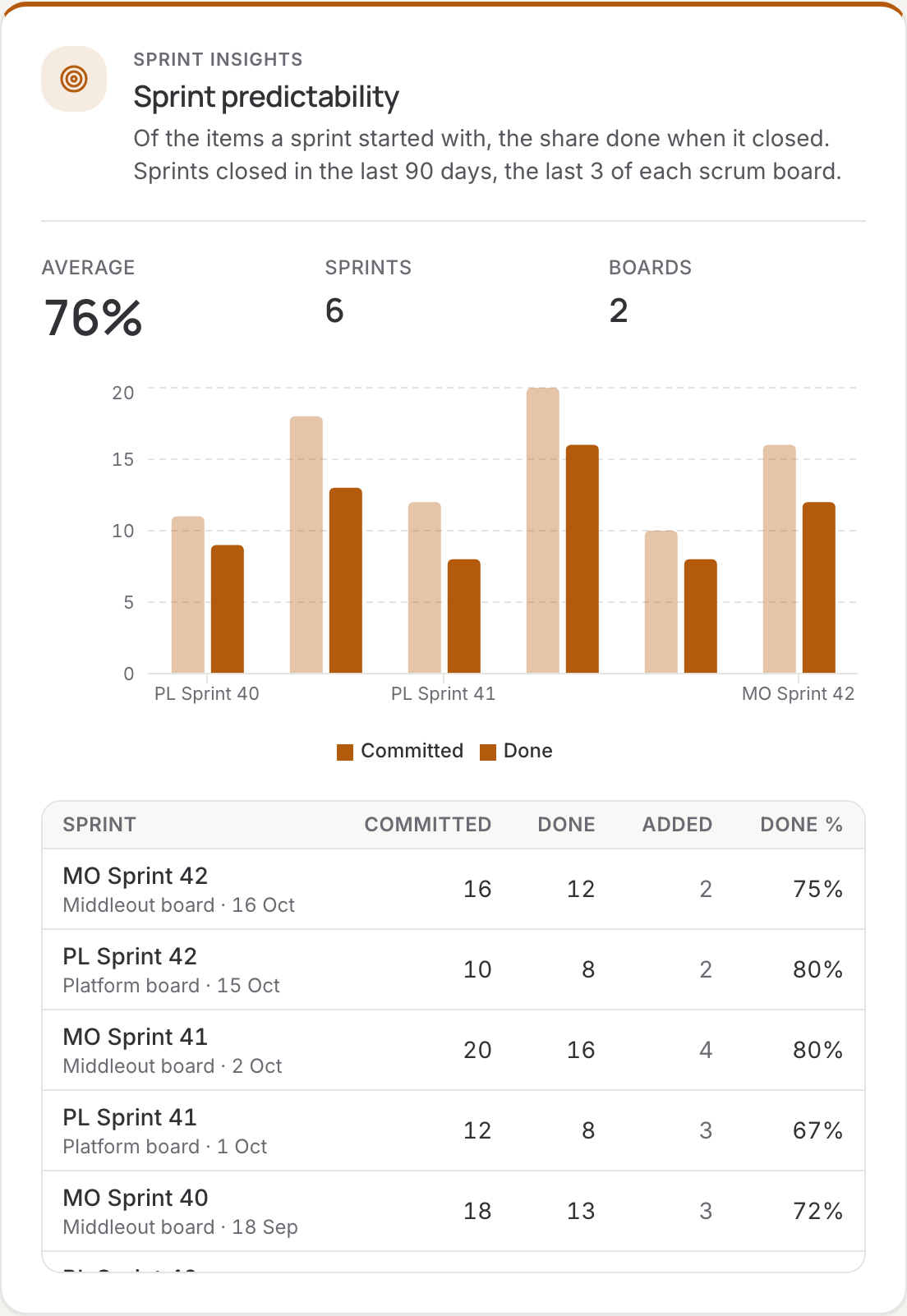
Of the items a sprint started with, the share that was done when it closed. Agile Analytics reads the closed sprints of the last 90 days, the last few of each scrum board, and shows per sprint what was committed, added during the sprint, and done, with the average over all sprints. Items moved to Done within a day after the close still count as done. A score needs at least three closed sprints. Click a sprint to open its sprint report in Jira.
Both flow and predictability are read every night and count towards the engineering health score on the overview; per team they are scored over the team's members and Jira boards.
Features or everything else
Every ticket is classified as feature or not feature by a machine-learning model that reads the ticket's text. The classification is made when the ticket is created and adjusted when it changes. Two charts show the ticket count and the reported time split between the two, per sprint or per period; the table lists each ticket with its label and the model's confidence. Filter by status: backlog, selected for development, in progress, review, done, closed.
Correcting a label
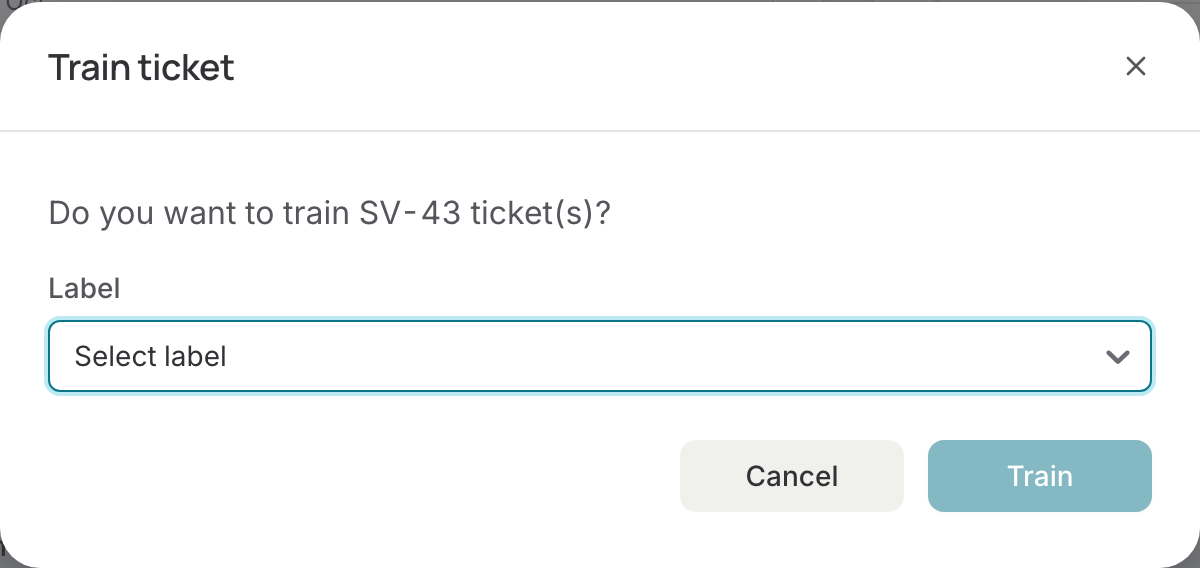
- Select the ticket with the wrong label.
- Open Select action and choose Train.
- Pick the correct label. The model learns from your correction.
Sprint schedule
The period picker at the top of the app offers your sprints as periods once a sprint schedule is set: see Sprint schedule.