Documentation menu
Connect Jira
Jira is the ticket feed of Agile Analytics. It drives sprint insights, flow and predictability, cycle time and lead time, inferred hours, the Jira issues behind insights, and the ticket links everywhere in the app.
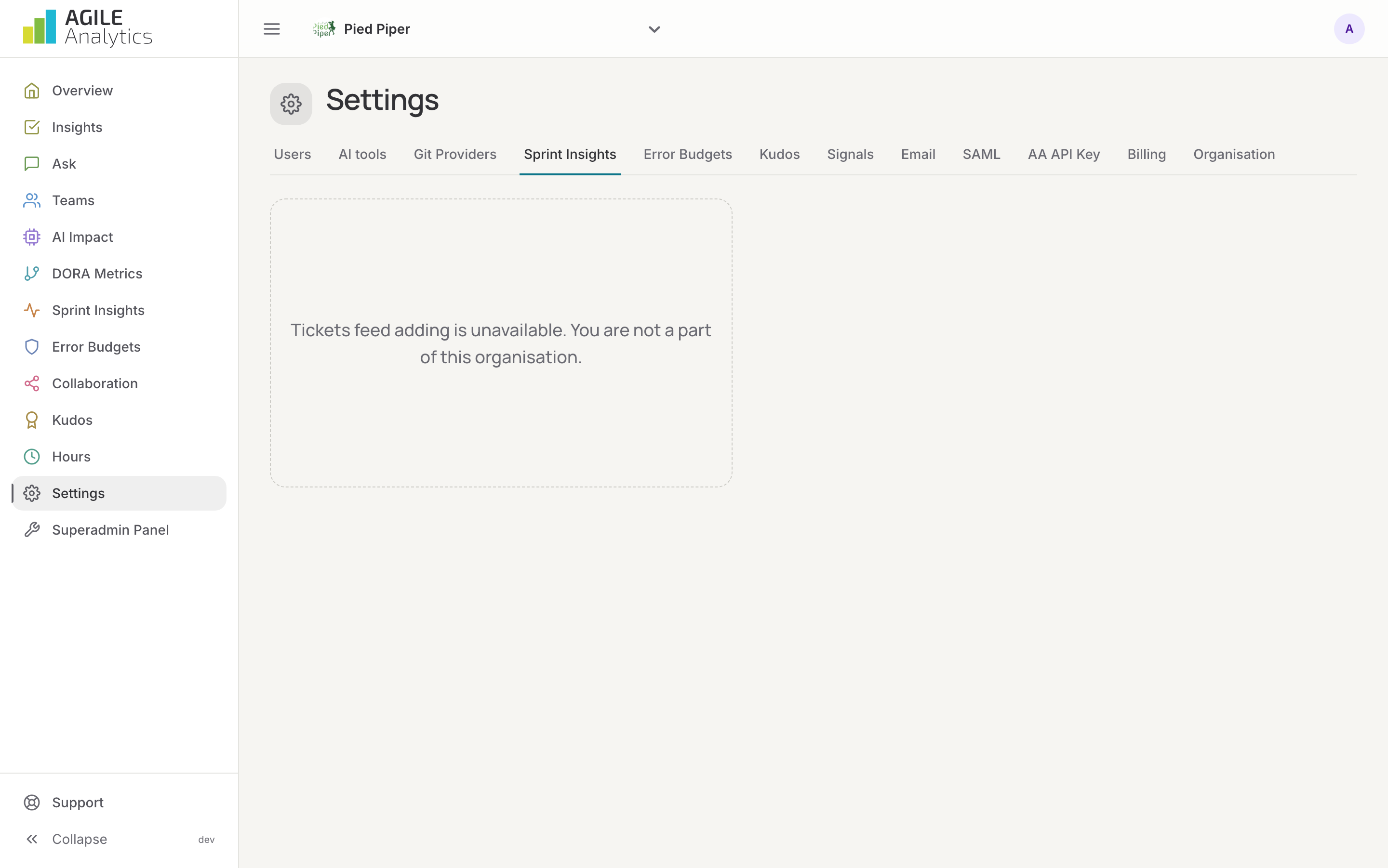
Connecting
- Go to Settings → Sprint Insights and press Add ticket feed; choose Jira.
- Press Authorize. Atlassian asks you to log in and to allow Agile Analytics to read your Jira (work, boards and sprints) and to create issues. Pick the site and press Accept. You return to the settings.
- Press Create webhook and wait until the status reads Webhook has been created. From now on every ticket change arrives as it happens.
- Press Test connection; it should say Connection works.
The Atlassian account you authorise with needs permission to create webhooks on the site: a Jira administrator, or someone the administrator has given that right.
Import the history
The webhook only brings in what changes from now on. Press Import history to load the issues updated since the date shown, with their status and assignee history, so sprint insights and flow start with a full picture.
Link your users
Under Settings → Users, press Connect in the Jira profile column for everyone whose tickets should count. Users whose Agile Analytics e-mail matches their Jira e-mail are linked automatically. See Invite your team.
Reconnecting
Agile Analytics asks Jira for more permissions over time: reading boards and sprints for predictability (October 2026) and creating issues from insights. A connection made before then still works for what it had, but the pages say so where something is missing (Needs a Jira board on the team, Jira does not allow Agile Analytics to create issues yet). Press Authorize again on the Jira card to grant the new permissions; nothing else changes.
Removing
Remove connection deletes the webhook and the authorisation. The data read so far stays.