Documentation menu
Connect Bitbucket Cloud
Agile Analytics connects to Bitbucket Cloud with your Atlassian account email and an API token with scopes. Bitbucket no longer accepts app passwords, so connections made with a Bitbucket username and app password stop working and need to be updated (see Update an existing connection).
Before you start: use an Atlassian account that is a member of your Bitbucket workspace and has admin rights on the repositories you want to add. Agile Analytics creates a webhook on every repository you select, and Bitbucket only lets repository admins do that.
1. Create an API token
- Go to id.atlassian.com → Security and choose Create and manage API tokens.
- Click Create API token with scopes. A plain API token without scopes does not work with Bitbucket.
- Name and expiry: give the token a recognisable name, for example
Agile Analytics, and an expiry date. Tokens last at most one year; set a reminder to replace it before it expires. - Select app: choose Bitbucket.
- Select scopes: select the scopes in the table below.
- Review the token and click Create token. Copy the token right away: Atlassian shows it only once.
| Scope | Used for |
|---|---|
read:user:bitbucket | Finding the workspaces you belong to |
read:workspace:bitbucket | Listing your workspaces |
read:project:bitbucket | Grouping repositories by project |
read:repository:bitbucket | Listing repositories and their main branch |
read:pullrequest:bitbucket | Pull requests, approvals and their history |
read:pipeline:bitbucket | Pipelines, for deployment metrics |
read:webhook:bitbucket | Checking the Agile Analytics webhook |
write:webhook:bitbucket | Creating the Agile Analytics webhook |
delete:webhook:bitbucket | Replacing or removing the webhook |
Scopes cannot be added to an existing token. If a scope is missing, create a new token and enter it in Agile Analytics.
2. Add Bitbucket to Agile Analytics
-
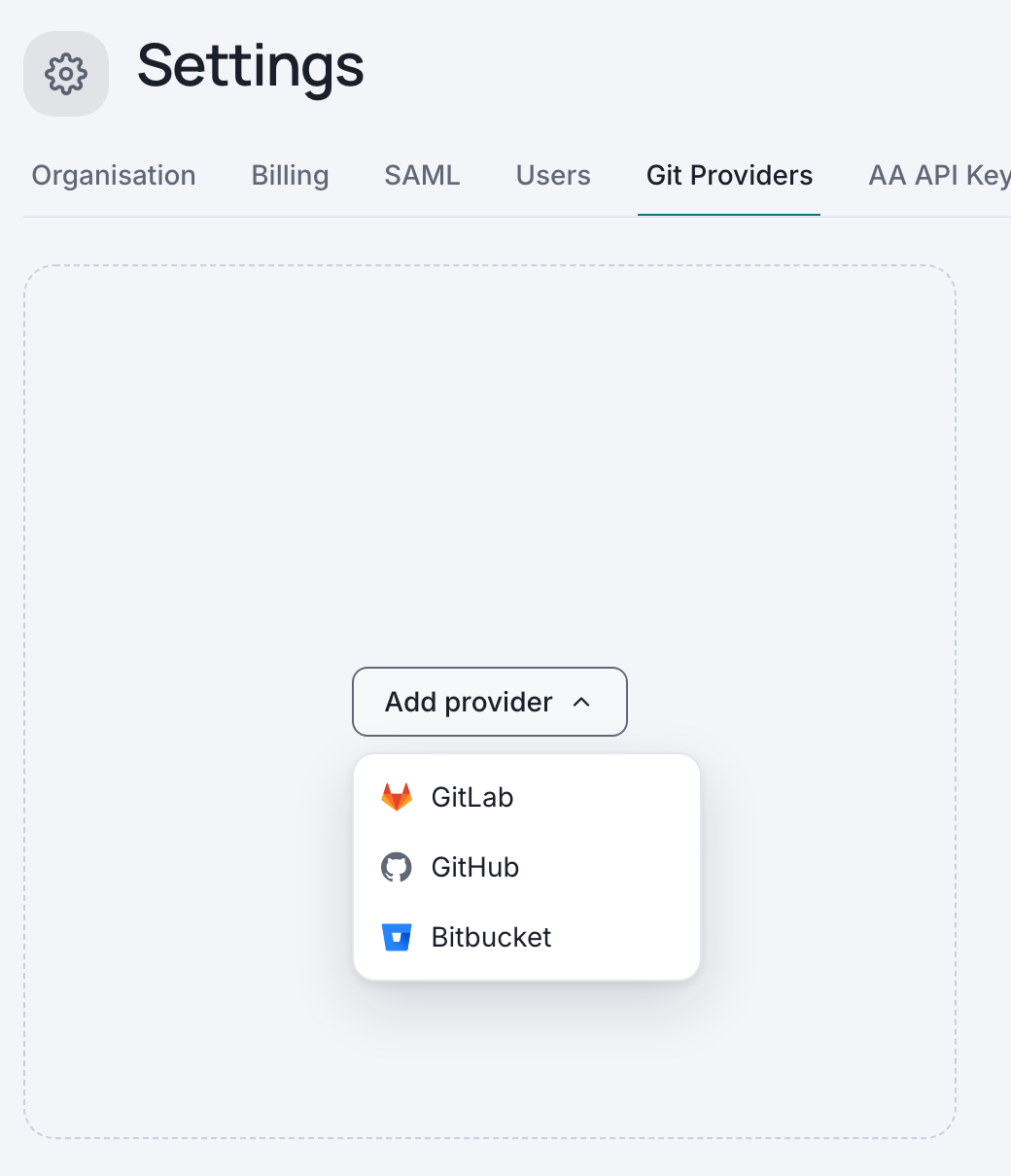
Go to Agile Analytics → Settings → Git Providers.
-
Click Add provider and pick Bitbucket.
-
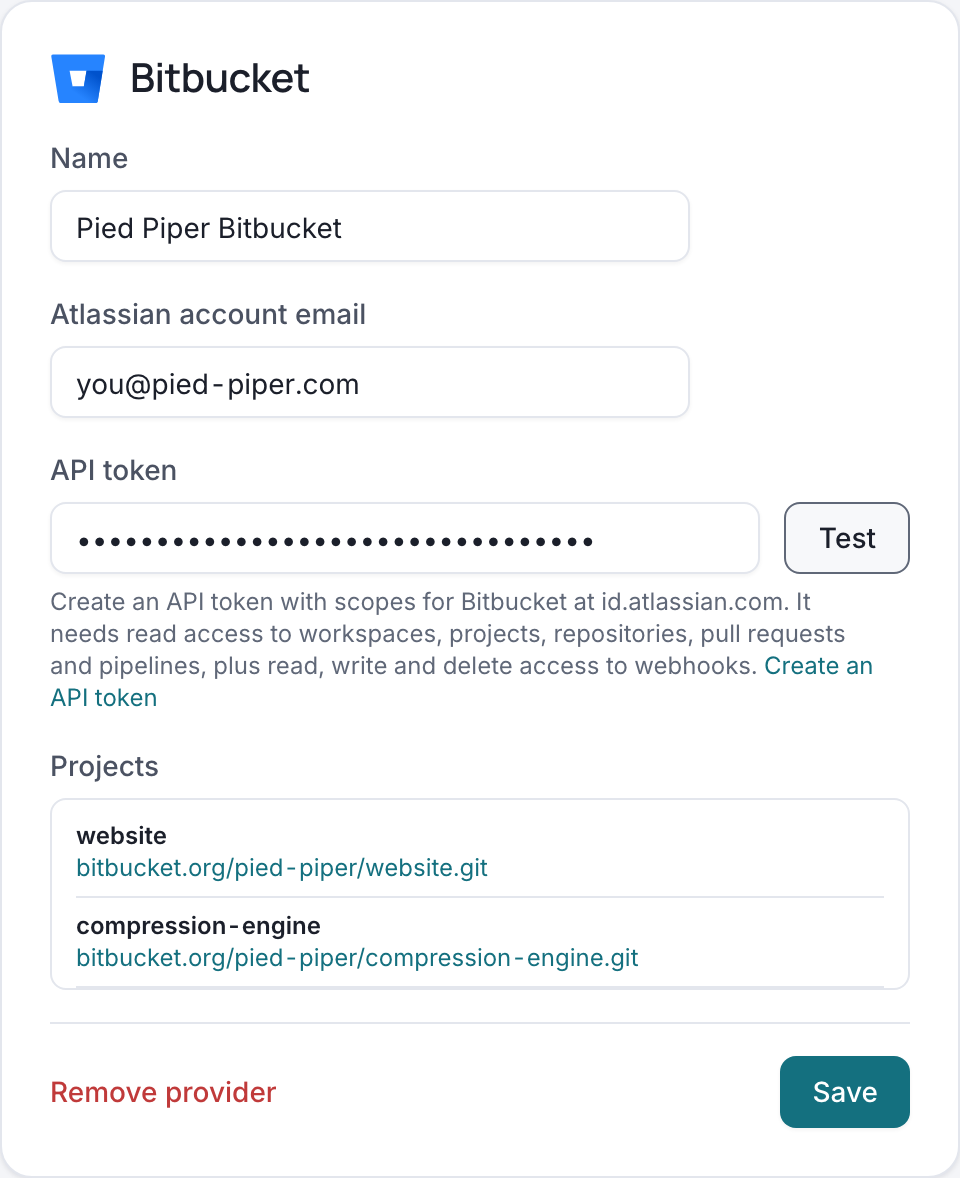
Fill in the Bitbucket card:
- Name: any name for this connection.
- Atlassian account email: the email address of the Atlassian account that created the token (not your Bitbucket username).
- API token: the token from step 1.
-
Click Test. When the token works, the card lists the repositories it can reach under Projects. Then click Save.
3. Select repositories
Select the repositories Agile Analytics should follow, as described in Add repositories to Agile Analytics. A webhook is created on each one, so new pull requests, approvals, merges and pipeline results arrive as they happen.
4. Import the history
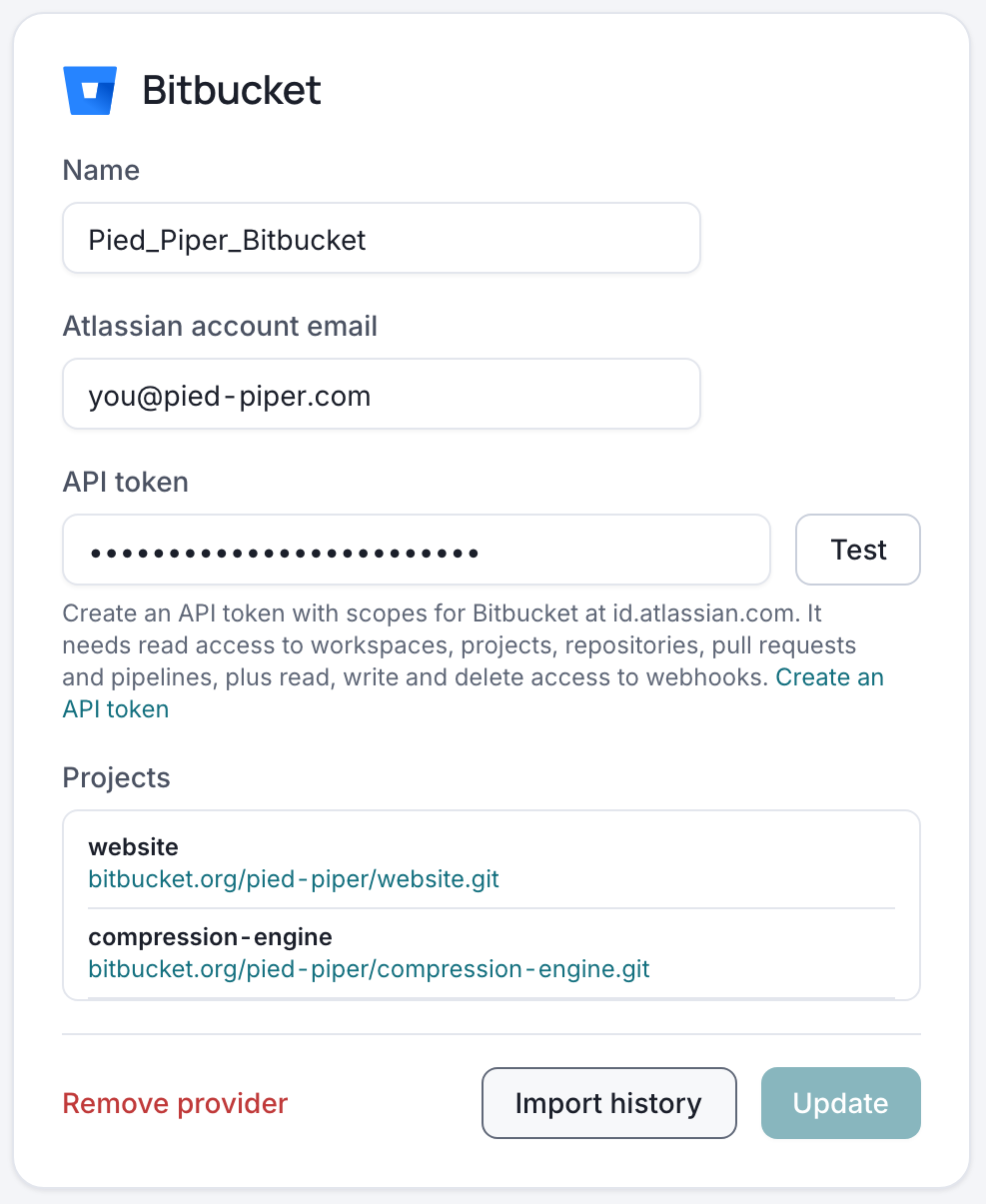
Webhooks only bring in what happens from now on. To fill the dashboards with your past work, click Import history on the Bitbucket card. It imports the pull requests of the selected repositories updated since 1 January of the current year and shows how many it imported. It is safe to run again, for example after selecting more repositories.
All set!
Update an existing connection
A connection made with a Bitbucket username and app password shows the warning Bitbucket no longer accepts app passwords. To fix it, create an API token (step 1), enter your Atlassian account email and the new token in the existing Bitbucket card, and click Update. Do the same when a token expires.
Troubleshooting
| Message | What to do |
|---|---|
| Bitbucket refused the credentials | Check that you entered the Atlassian account email (not the Bitbucket username) and an API token with scopes, not an app password. An expired token gives the same message. |
| The API token lacks the scopes … | Create a new token with all scopes listed in step 1 and enter it in the card. |
| Bitbucket refused a webhook on … | The account needs admin rights on that repository. Ask a workspace admin to grant them, or use a token of an account that has them. |