Documentation menu
Invite your team
Agile Analytics only reports on people who are members of your organisation. Invite your team so their merge requests, tickets, hours and kudos are counted and so they can log in.
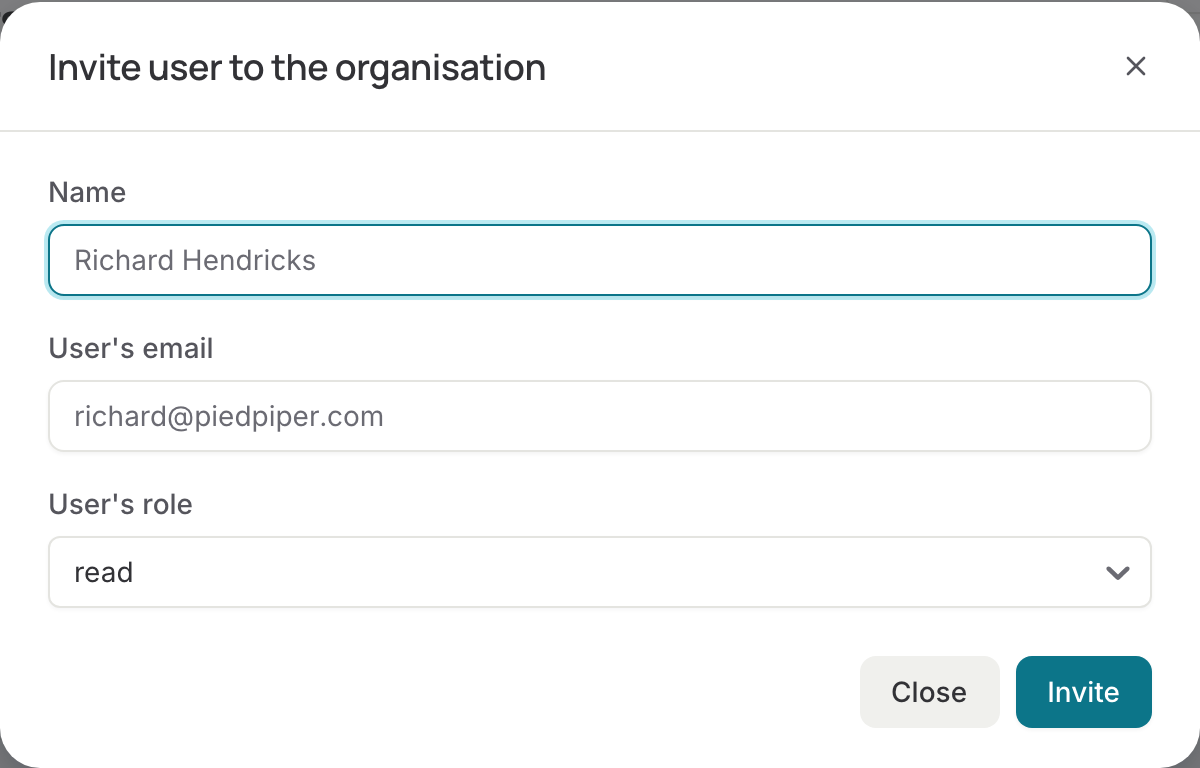
Inviting someone
- Go to Settings → Users and press Invite user.
- Enter their e-mail address and name, pick a role, and optionally the e-mail address they use in Jira if it differs.
- Press Invite. They get an e-mail from
no-reply@agileanalytics.cloudwith a link that is valid for seven days. With the link they sign in with Google or Microsoft, or set a password.
Pending invitations are listed with the users; an expired one can be sent again or withdrawn. With SAML single sign-on set up, everyone in your identity provider can log in without an invitation.
Roles
| Role | Can |
|---|---|
| read | See every page, ask the assistant, book their own hours |
| write | Read, plus create and edit teams, projects, services and SLOs |
| admin | Write, plus settings: users, connections, plan, billing, Slack, e-mail, signals |
Per user
- Hours / week and working days: the contract behind hours efficiency, billability and inferred hours. The default is 32 hours over Monday to Thursday; set it right for everyone who books hours.
- Jira profile: press Connect to link the user to their Jira account, so their tickets count in flow and inferred hours and the assistant can answer what they are working on. Users who invite themselves through Jira's e-mail address are linked automatically.
- Git identities are matched on the e-mail and username of the commits and merge requests; the Collaboration page notes members without a linked Git account.
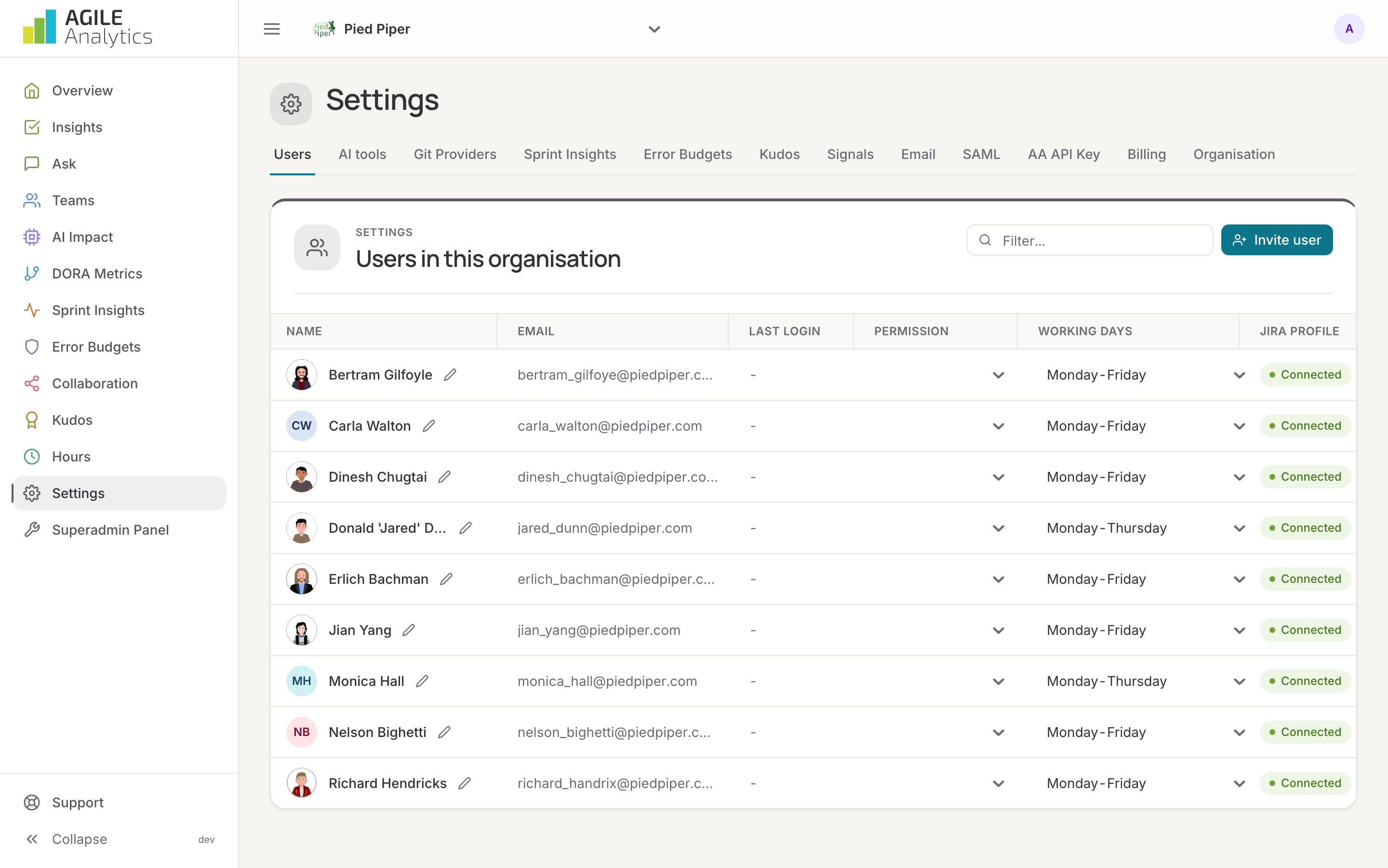
Merging duplicate users
The same person can show up twice: once from an invitation and once from a Jira or Slack sync with a different spelling of the e-mail address, or with a second company address. Open the row's menu, choose Merge into another user and pick the user to keep; likely duplicates are suggested first. Their Jira and Slack accounts, booked hours, projects, kudos, teams and Git identities move to the user you keep, and the duplicate disappears. A user who can still sign in cannot be merged away: remove their login first.
Removing someone
Remove a user from the row's menu. Their data stays in the reports of the past; they can no longer log in to this organisation. Someone who signs in again through your SAML provider becomes a reader again.