Documentation menu
Connect GitLab
Agile Analytics reads GitLab, on gitlab.com or your own instance, with a personal or group access token. The token's owner needs the Maintainer role on the projects you want to follow, because Agile Analytics creates a webhook on each of them.
1. Create a token
- In GitLab, open User settings → Access tokens, or the access tokens of a group to follow everything in it.
- Create a token with the
apiscope: Agile Analytics reads projects, merge requests, approvals, commits, pipelines and jobs, and creates the webhooks. - Give it a name such as Agile Analytics and an expiry; set a reminder to replace it before it expires. Copy the token: GitLab shows it once.
2. Add GitLab to Agile Analytics
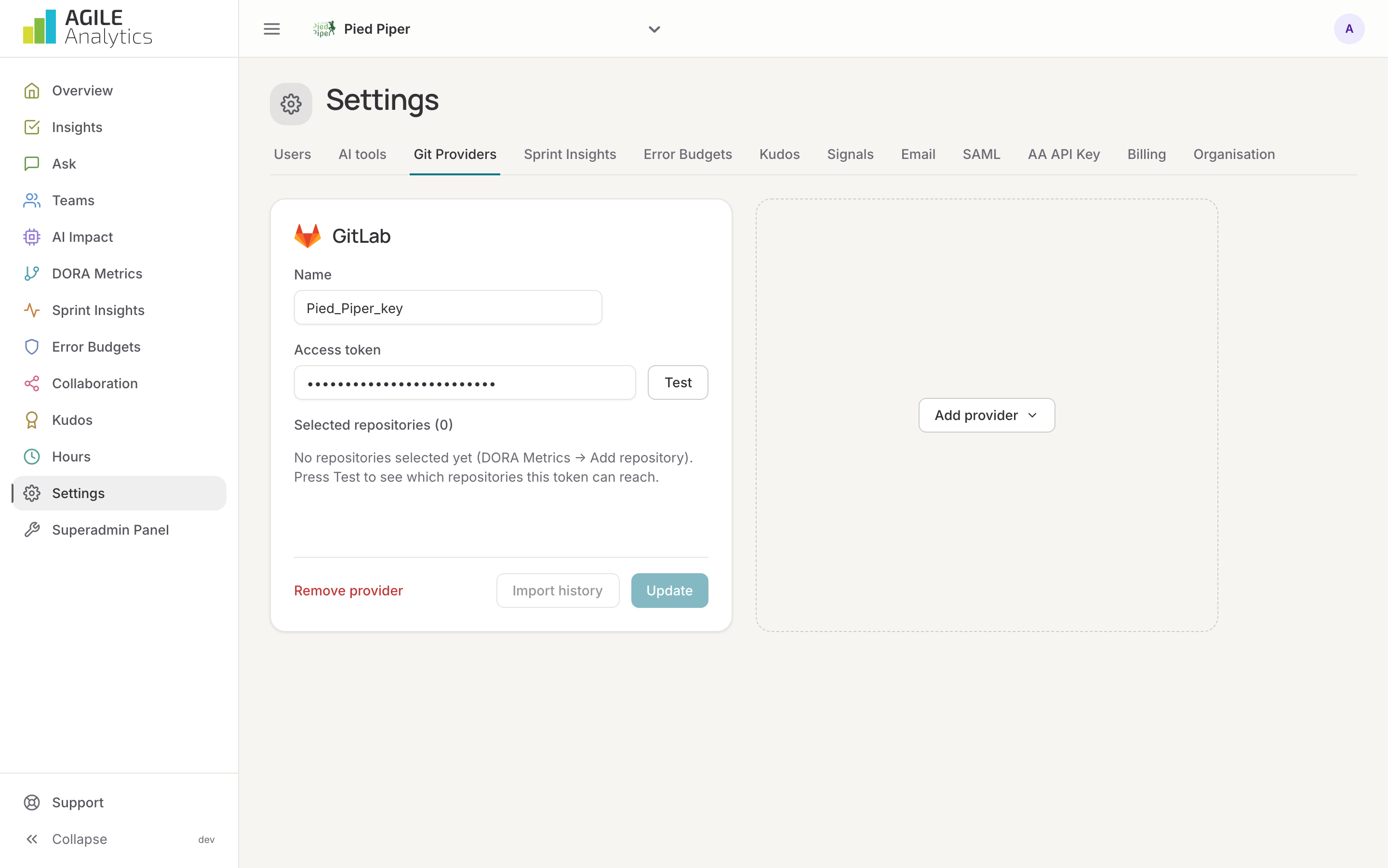
- Go to Settings → Git Providers, press Add provider and pick GitLab.
- Give the connection a name and paste the token.
- Press Test. The card lists the projects the token can reach, grouped by namespace. Press Save.
3. Select repositories
Pick the projects or follow whole groups, including projects created later: Repositories and groups. A webhook is created on each one, so merge requests, merges, pipelines and jobs arrive as they happen.
4. Import the history
Webhooks only bring in what happens from now on. Press Import history on the GitLab card to load the merge requests of the selected projects since 1 January of this year. It is safe to run again. GitLab limits how often it may be asked; when the import stops early, the card says how many projects are left and the next run finishes them.
What is read from GitLab
- Merge requests, approvals and merges: DORA lead time, AI attribution, collaboration.
- Pipelines and their environments: deployment frequency (production environments only), change failure rate.
- Jobs and their queue time: CI queue time.
- Commits on any branch, every hour: AI adoption for people who push without a merge request.
Replacing a token
Paste the new token in the existing card and press Update. The selected projects and their history stay.